Filmomat SmartConvert
FOR ADOBE LIGHTROOM CLASSIC
NEW: SmartConvert is now available as a plugin for Adobe Lightroom Classic.
Current Version: V1.01.
Requires Adobe Lightroom Classic. Demo version shows a watermark on the image.
Autocropping is limited to 20 crops in the Demo version.
You may already be familiar with the standalone version of SmartConvert. With this plugin, both the conversion process and AutoCrop functionality are now seamlessly integrated into Adobe Lightroom Classic.
Why this plugin?
While many SmartConvert users appreciate the standalone, subscription-free experience, a large number still rely on Lightroom for archiving and final image adjustments. Until now, this meant importing RAW files into SmartConvert, exporting them as JPG or TIFF, and then re-importing them into Lightroom - a time-consuming and inefficient workflow.
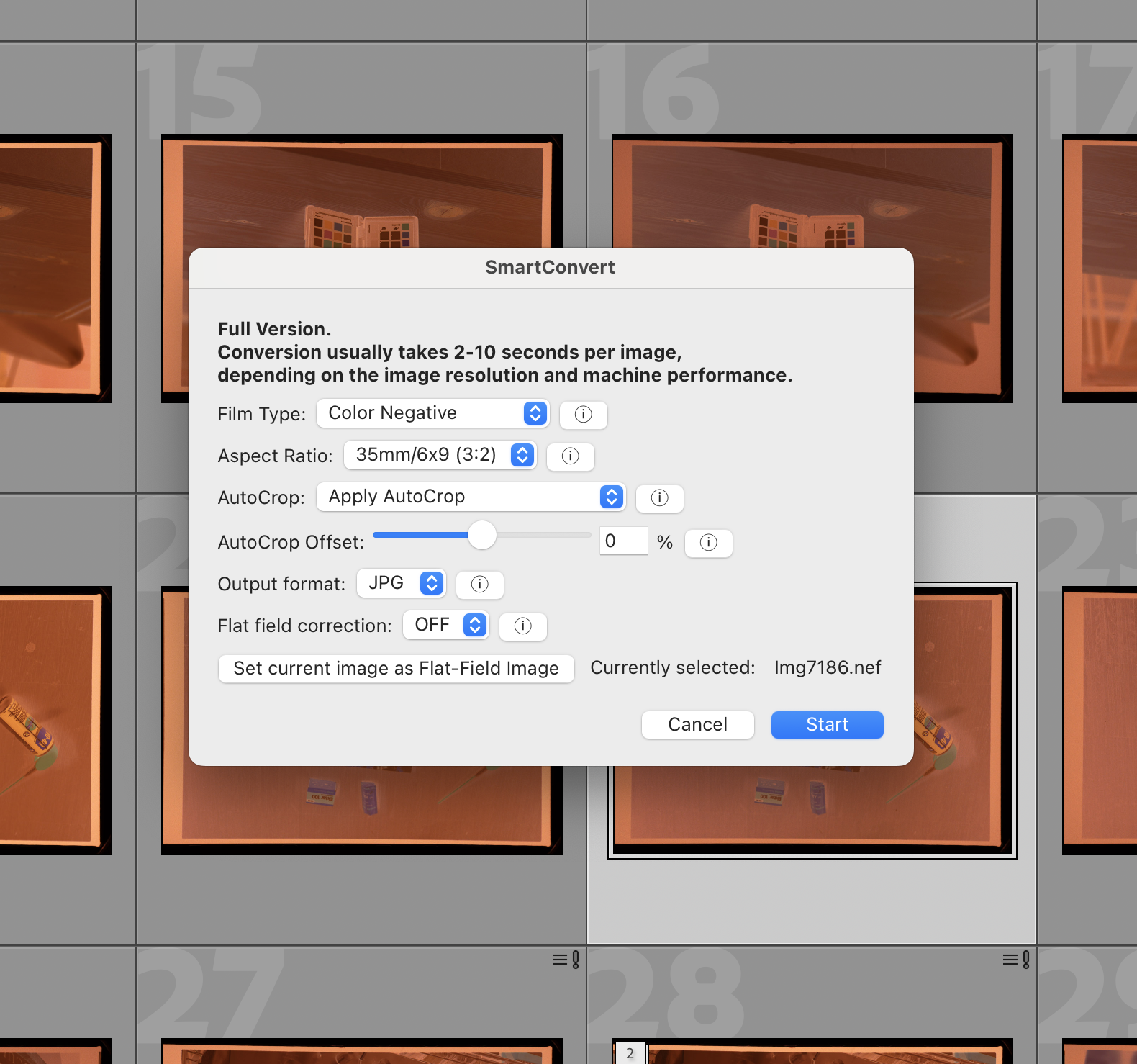
The new plugin eliminates these extra steps by integrating SmartConvert directly into your Lightroom workflow. Simply select your RAW files, click “Start,” and your converted images are generated instantly within Lightroom.
Key Features:
Neutral Conversion
One of SmartConvert’s core strengths is its neutral conversion algorithm. It deliberately avoids applying LUTs, filters, or stylistic effects, delivering a clean, unaltered starting point for your edits.
By design, the SmartConvert plugin does not include any image or color adjustment settings -no presets, no tweaks, no hidden processing. It produces a single, consistent conversion, giving you full creative control afterwards. From there, you can take advantage of Lightroom’s powerful editing tools to shape the final look of your images.
AutoCrop
SmartConvert includes a powerful AutoCrop algorithm that automatically detects the film frame and removes unwanted borders. This functionality is now fully integrated into Lightroom.
AutoCrop can be applied not only to images converted with SmartConvert, but also to RAW files, already converted positives, or any other image files within your catalog. Since it uses Lightroom’s native cropping tool, all adjustments remain fully editable.
You can also define an offset value to control the crop: preserve a visible border around the frame or crop tighter into the image, depending on your preference.